






|
||||
|
|
|
|
|
|
||||
| E-mail FAQ's |
|
Here you will find answers to some of your e-mail questions that you may have. Some of these are technical issues, and others are simply questions to accomplishing what you want in Visual ChamberWare's e-mail feature. |
|
|
- When I send an e-mail it gives me an em-02 error message - When I send an e-mail it gives me an em-09 error message - How do I include an e-mail attachment? - How do I send a Rich Text (html) e-mail? - When I send an e-mail from ChamberWare a prompt asks me to verify each one
|
|
EM-02: Your computer is not configured
properly for msMAPI…
|
|
|
This happens most commonly on Windows 2000 and XP Systems. |
|
|
Solution: ChamberWare needs to have the MAPI controls implemented into the Windows system registry. In order to do manually register these controls you may try these suggestions. Visual ChamberWare 2.0 or later users: Click the Tools pull-down menu in ChamberWare and select Install Mapi.reg. This will implement those controls into the Windows system registry for you. This should take care of the problem. Visual ChamberWare 1.0 users:
|
|
|
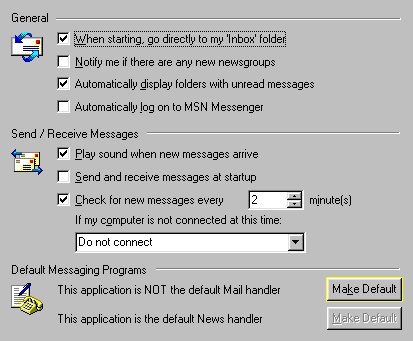
EM-09: There was a problem signing on to the MAPI Control… ChamberWare cannot determine which e-mail program to use. If you have Outlook & Outlook Express installed on your computer, ChamberWare may not recognize either one as the default mail handler. Solution: If using Outlook Express as your default mail handler:
|
|
|
How do I include an e-mail attachment?
Setup your e-mail in ChamberWare as you normally would. However,
before you click send, select the
|
|
|
|
|
|
How do I send a Rich Text (html) e-mail? |
|
|
When I send an e-mail in ChamberWare I can't change any of my fonts, or make them bold, or italic. This is because ChamberWare utilizes a Plain Text format, for compatibility reasons. For example, if you were to send an e-mail to your members using a Bank Gothic font, the only way the e-mail would display the same way on the recipients end is if they have that same font installed on their computer. So in essence, there is no guarantee that those receiving your e-mails will see every font or special formatting that you have created. |
|
|
Solution: Use your default e-mail handler's dialog. Both Microsoft Outlook and Outlook Express allow the sending of Rich Text, or HTML e-mails. What you first need is to get your e-mail addresses into the send dialog. ChamberWare can help you there. When sending the e-mail from within ChamberWare enable the Checkbox Send one email to all recipients. If you are using Visual ChamberWare 2.0 or later, this will automatically check the correlating box below, Preview each email before sending, . Visual ChamberWare 1.0 users must check the box manually.
Before you click send, it is suggested you fill in the Display field with a caption such as "Chamber Members", or "Membership". This is used for masking the first e-mail address that ChamberWare outputs to your default e-mail dialog. The following e-mail addresses are placed in a Blind Carbon Copy (Bcc) field. This way your members will not be able to see one another's e-mail addresses. Once you click Send your default e-mail's send dialog will appear. Be patient, it may take a little time since you might have hundreds of e-mail addresses that ChamberWare needs to output. When your e-mail dialog opens you will see that the address field display's exactly what you typed in the ChamberWare e-mail display field. So if you typed in Chamber Members in Visual ChamberWare, that is exactly what you will see in the address field of the e-mail. All the other e-mail addresses will be located in the Bcc field. From here you may now type up, or paste your text from Word or any other application into the body of the e-mail dialog. Note that the formatting from Word or other programs comes across into the Outlook and Outlook Express e-mail dialog. You can also embed pictures and graphics to your e-mail. So be as creative as you want to be. Just note again that certain objects may not appear on the recipients end as they look on your computer. |
|
|
|
|
|
When I send an e-mail from ChamberWare a dialog prompts me to send each individual e-mail. |
|
|
Outlook Users:
Microsoft created an issue with the full
version of Outlook that has affected its customers world wide. In
order to prevent mass emailing to all addresses in one's Outlook email
address book, (as is typical of many virus's), Microsoft has heavy handedly
introduced a dialog asking for confirmation that another program wants to
send an email for you. This dialog pops up not once for the entire send job,
but once for each individual email! Thus you must confirm each email before
it is sent, that could be 100's!!! Since this issue has affected all Outlook users, a company known as Express Soft has created a program as a kludge to work around this Microsoft problem. The program, in essence, clicks the Send button for you each time the dialog would appear, and it does it very quickly. Several of our clients have been very pleased with the results. Click here for more info and to download the file
When the download dialog appears you may
choose to either save the file, or open it from it's current location.
It is relatively small in size. If you have more than one computer in
the office that uses Outlook as the default mail client, you may want to
save the file and then apply it on the other computers as well.
Otherwise you can simply open and run the file. It will automatically
walk you through the setup process. Outlook Express Users:
|
|
| Home | Overview | Contacts | Features | User Area | Internet AddOn |
 button. This will bring
up a dialog that will allow you to choose the file you wish to attach to the
e-mail. When you find your file click the Ok button. Now
you are ready to send your e-mail. Below is a highlighted region of
the attachment portion of the e-mail form.
button. This will bring
up a dialog that will allow you to choose the file you wish to attach to the
e-mail. When you find your file click the Ok button. Now
you are ready to send your e-mail. Below is a highlighted region of
the attachment portion of the e-mail form.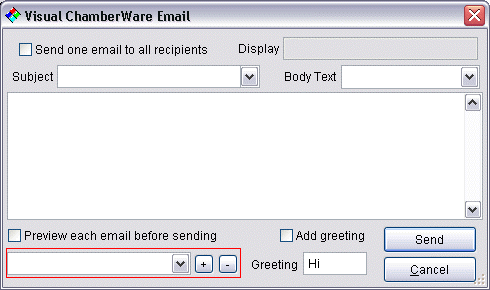

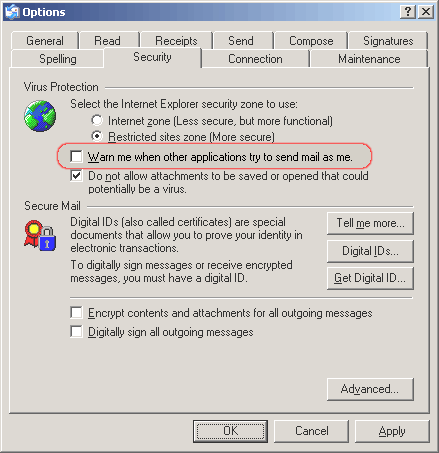 Outlook
Express has a disable for this security feature. Thus it is recommended you
utilize Outlook Express for your broadcast e-mail needs. In order to disable
the confirmation dialog you will need to open Outlook Express and go to the
Tools Pull-down menu and select Options. Go to the Security
tab and Un-check the option that says Warn me when other
applications try to send mail as me.
Outlook
Express has a disable for this security feature. Thus it is recommended you
utilize Outlook Express for your broadcast e-mail needs. In order to disable
the confirmation dialog you will need to open Outlook Express and go to the
Tools Pull-down menu and select Options. Go to the Security
tab and Un-check the option that says Warn me when other
applications try to send mail as me.