






|
||||
|
|
|
|
|
|
||||
| Report FAQ's |
|
Here you will find answers to some of your common report questions. These are simply to help you accomplish what you want in Visual ChamberWare's report feature. Modifying reports is a feature for advanced users who understand the concepts of tables and fields. It takes practice and patience to understand this relationship. If you are just starting out in learning ChamberWare, it may be more practical to contact ChamberWare systems for an on-line training session on how to create, modify and manipulate reports. However, once you grasp the concepts behind it, it becomes very simple to use. |
||||
|
- How do I sort a report by a specific field? - How do I export a list of my members?
|
||||
|
|
||||
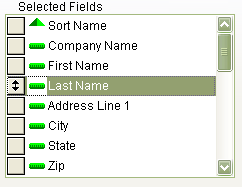
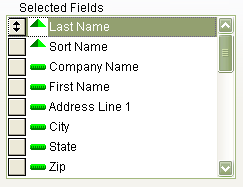
A good idea is to do a practice report in this instance. Start
with the Main Reps with Address report. By default this
report is in order by the Sort Name. Our objective is
going to be to alter this so that the report is sorted by the Reps
Last Name.
It should look just like this:
Of course you can turn off the sort criteria for the Sort Name field. Just right click on the Sort Name and choose No Sort. |
||||
|
Filter Conditions: |
||||
|
it is important to understand how a Filter is used, and what it is used for. Filters are specifically for including or excluding various data records from your report. One example of this is when you set your status codes to Active and Courtesy. This is in essence is setting a filter. When you choose the Active and Courtesy status codes, ChamberWare filters the database excluding all other status codes. However, there are many other types of filter conditions you can specify. You can select members in a certain zip code or area code range just by setting the right filter condition. There are three required parameters in correctly setting up a filter condition.
You must first decide your criteria that you want ChamberWare to respect. For example, if you wanted to pull a report of all active members with a specific area code, you would need to select the Phone field since it contains the area code data. Next you must place a condition on the Phone field. The condition is what stipulates whether ChamberWare will include or exclude the specified data within a chosen field. If you wanted to view every member in the (818) area code, you would need to select the condition Begins with or equals. The final step is to input your value, which in this example is "818". Once you have entered your value, click finish. On the Filter tab there will exist a new condition line. It should display just like this: Phone Number begins with or equals "818" There may be other conditions on the list prior to this one, so you most likely will see a "and", "or" statement. and Phone Number begins with or equals "818" You may have conjoining conditions. However, the properties of these conditions must coincide so as to not conflict or cancel one another out. It will require some practice and patience. Overall the concept is pretty simple. Try creating a filter condition on the Reps Phone List report. Select the report from the Members folder and then click on the Filter tab. Click the Add button and go through the next steps, selecting the appropriate fields and entering the desired value. If you wish to save your filter condition, you may do so. ChamberWare will prompt you to give the report a new name, as you cannot overwrite system reports. This will become your own custom report from here on. So experiment and play around with these conditions. You can't break any of the system reports, so there is nothing to worry about. |
||||
| Exporting the Membership List: | ||||
|
|
||||
|
If you need to output a list of the membership for a typesetter or publisher, you will need to create what is known as an Export Query. This is simply a process of "Pick and choose". Simply pick and choose the fields you need, and what you want the data sorted by. Then finally, choose a format that you want ChamberWare to output the data to.
Starting with the right report is the
key to minimizing your workload. Say for example you wanted a
list of all members by business class. Logically then, it
would make sense to use the report titled Members by Business
class. This report is already sorted by the business
class, and most likely contains the fields you need. However,
you may not want every field that it currently includes.
Therefore, you can remove the unwanted fields. Go to the
Fields tab, and under the right window pane where it says
Selected fields, you can remove any fields you do not want by
simply double clicking on the field name, or selecting it and
clicking the
Once you have removed all the
unnecessary fields click the Options tab. In the lower
right corner of the screen, where it says Destination, click
there and select the desired format you want. For example, if
you want this file to be put into a comma delimited format or MS
Word, you would select it from the drop down list. Once you
have specified your destination, click the Save button.
ChamberWare will prompt you to give this a new name as you cannot
overwrite a system report. Now click on the Report tab.
Click the From this point forward you can now access this export query and use it repeatedly as you need it. |
||||
| Home | Overview | Contacts | Features | User Area | Internet AddOn |
 .
. and
then give type in a file name. This is how you will later
identify your exported list. You can save this exported file
to a floppy disk from here as well. If you want to e-mail this
as an attachment you will need to remember where you save it to your
computer, and then later just attach it to your e-mail.
and
then give type in a file name. This is how you will later
identify your exported list. You can save this exported file
to a floppy disk from here as well. If you want to e-mail this
as an attachment you will need to remember where you save it to your
computer, and then later just attach it to your e-mail.